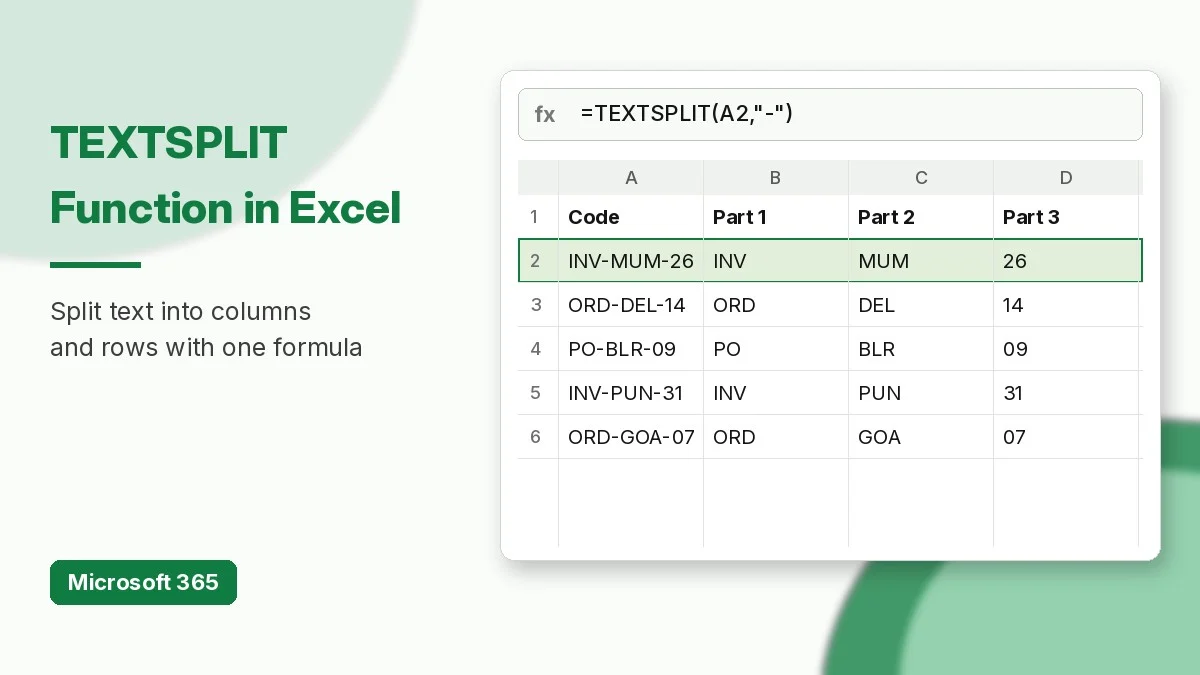
The TEXTSPLIT function in Excel breaks a text string into separate cells wherever a delimiter appears, such as a space, comma, or dash. It does the same job as the Text to Columns wizard, but as a live formula: change the original text and the split result updates instantly.
This guide explains the TEXTSPLIT syntax and walks through eight practical examples, from splitting names to turning a single cell into a small table, plus the errors you are most likely to meet and how to fix them.
What Does the TEXTSPLIT Function Do?
TEXTSPLIT returns a dynamic array. Give it a column delimiter and the pieces spill across columns; give it a row delimiter and they spill down rows; give it both and you get a grid. Microsoft describes it as the inverse of TEXTJOIN, which you can learn in our TEXTJOIN function guide.
TEXTSPLIT is available in Excel for Microsoft 365 (Windows, Mac, and the web) and Excel 2024. Older versions such as Excel 2021 show #NAME?.
TEXTSPLIT Syntax
=TEXTSPLIT(text, col_delimiter, [row_delimiter], [ignore_empty], [match_mode], [pad_with])| Argument | Required | Meaning |
|---|---|---|
| text | Yes | The text or cell to split |
| col_delimiter | Yes* | Character(s) that start a new column |
| row_delimiter | No | Character(s) that start a new row |
| ignore_empty | No | TRUE skips empty values from consecutive delimiters (default FALSE) |
| match_mode | No | 1 = case-insensitive delimiter match, 0 = case-sensitive (default) |
| pad_with | No | Value used to fill gaps in uneven rows (default #N/A) |
*You can leave col_delimiter empty when you only want to split into rows, for example =TEXTSPLIT(A2,,","). Full details are in the official TEXTSPLIT documentation.
Sample Data
The examples use these values in cells A2:A8:
| Cell | Value |
|---|---|
| A2 | Priya Sharma |
| A3 | INV-MUM-2026-0451 |
| A4 | Pune, Mumbai; Delhi,Chennai |
| A5 | Apples=40;Mangoes=25;Bananas=60 |
| A6 | Red,,Green,,,Blue |
| A7 | 120x45X30 |
| A8 | Mon:Tue:Wed;Thu:Fri |
TEXTSPLIT Examples Step by Step
1. Split a full name into first and last name
=TEXTSPLIT(A2, " ")The space is the delimiter, so the result spills Priya into the formula cell and Sharma into the cell on its right.
2. Split a code by a dash
=TEXTSPLIT(A3, "-")The invoice code becomes four columns: INV, MUM, 2026, and 0451. The pieces are text, so the leading zero in 0451 is kept.
3. Use several delimiters at once
=TRIM(TEXTSPLIT(A4, {",",";"}))An array constant {",",";"} tells TEXTSPLIT to split on commas and semicolons. TRIM removes the leftover spaces, returning Pune, Mumbai, Delhi, and Chennai in four clean cells.
4. Turn one cell into a table
=TEXTSPLIT(A5, "=", ";")The semicolon starts a new row and the equals sign starts a new column, so A5 becomes a 3 x 2 table:
| Fruit | Qty |
|---|---|
| Apples | 40 |
| Mangoes | 25 |
| Bananas | 60 |
5. Ignore empty values
=TEXTSPLIT(A6, ",", , TRUE)Without the fourth argument, the double and triple commas create blank cells. Setting ignore_empty to TRUE returns just Red, Green, and Blue.
6. Match the delimiter in any case and get numbers
=--TEXTSPLIT(A7, "x", , , 1)A7 mixes a lowercase x and an uppercase X. With match_mode = 1 both are treated as delimiters. TEXTSPLIT always returns text, so the double minus (--) converts 120, 45, and 30 into real numbers that SUM and charts can use.
7. Pad uneven rows
=TEXTSPLIT(A8, ":", ";", , , "-")The first row has three days and the second only two, so Excel would normally fill the gap with #N/A. The pad_with argument replaces it with a dash: Mon, Tue, Wed on row one and Thu, Fri, – on row two.
8. Return only one piece
=INDEX(TEXTSPLIT(A3, "-"), 3)Wrap TEXTSPLIT in INDEX (or CHOOSECOLS) to pick a single item. This formula returns 2026, the third part of the invoice code, in one cell. For simple before/after splits, TEXTBEFORE and TEXTAFTER are also handy.
TEXTSPLIT vs Text to Columns vs Google Sheets SPLIT
| Feature | TEXTSPLIT | Text to Columns | Google Sheets SPLIT |
|---|---|---|---|
| Updates when text changes | Yes | No (one-time) | Yes |
| Split into rows | Yes | No | No (wrap in TRANSPOSE) |
| Multiple delimiters | Array constant | Tick several boxes | Each character by default |
| Pad uneven rows | pad_with | Not needed | Not available |
In Google Sheets, use =SPLIT(A2, " "). By default SPLIT treats each character of the delimiter as a separate separator; see the Google Sheets SPLIT help page for the split_by_each and remove_empty_text options.
Common TEXTSPLIT Errors and Fixes
- #NAME? – your Excel version does not include TEXTSPLIT. Use Text to Columns or update to Microsoft 365.
- #SPILL! – cells to the right or below are not empty. Clear the spill range.
- #N/A in the result – rows have different numbers of items. Add the pad_with argument or wrap the formula in IFNA.
- Only the first value per cell – TEXTSPLIT on a range such as A2:A8 cannot return nested arrays. Split each cell separately, or join them first with
TEXTSPLIT(TEXTJOIN(";",TRUE,A2:A8),",",";"). - Numbers will not add up – results are text. Convert them with
--or VALUE.
FAQ
Is TEXTSPLIT case-sensitive?
Yes, by default. Set match_mode to 1 to match the delimiter in any case.
Can TEXTSPLIT split on a line break?
Yes. Use CHAR(10) as the delimiter, for example =TEXTSPLIT(A2, , CHAR(10)) to put each line in its own row.
Does TEXTSPLIT work in Excel 2021?
No. It needs Microsoft 365 or Excel 2024. More text tricks for older versions are in our guide to Excel formulas for manipulating text.
Download the TEXTSPLIT Practice Workbook
Use the companion workbook below to practise all eight examples. It contains the sample text, a Practice sheet with empty answer cells, and a Solutions sheet with working TEXTSPLIT formulas.
Download the practice workbook
The same data as this tutorial, with empty answer cells and a Solutions sheet.
