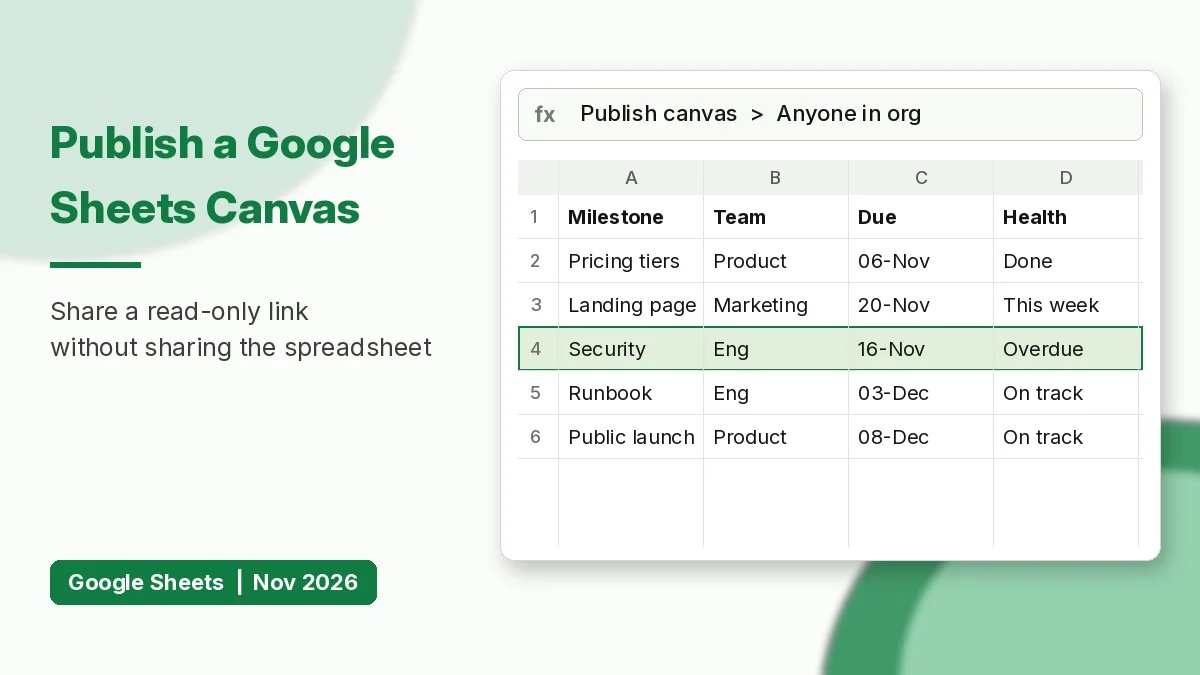
You can now publish a Google Sheets canvas to its own link. Google announced on November 11, 2026 that a Gemini-built canvas (a dashboard, kanban board, calendar or other mini-app made from your spreadsheet) can go out as a read-only standalone link. People can use the mini-app without being given the source spreadsheet.
This guide covers what changed, who gets it, how to publish step by step, the difference between auto-republish and a static snapshot, and the privacy points to check before you share. A practice tracker you can turn into your first canvas is at the end.
What Is a Google Sheets Canvas?
Sheets canvas launched in August 2026. It is a Gemini feature that turns the data on one sheet tab into an interactive layout from a plain-English prompt such as “build a kanban board of these tasks grouped by status”. The canvas lives as a tab in your spreadsheet and is read-write. Drag a card or edit an entry in the canvas and the source rows update, and edits in the grid show up in the canvas.
Until now, sharing a canvas meant sharing the spreadsheet, because canvas access matched file access. The new publish option removes that limit.
What the New Publish Option Does
- Separate link: the published canvas gets its own URL, not the spreadsheet URL.
- Its own audience: you can publish to your whole organisation even when the file is shared with only a small team.
- Read-only for viewers: people with the link can interact with the mini-app (filter, browse, open cards) but cannot edit the source sheet.
- Two update modes: republish automatically whenever the source sheet changes, or publish a static view of the data as it is now.
- Easy to manage: the same toolbar icon lets you copy the link, change the audience or stop publishing at any time.
Google gives three examples: an events coordinator publishing a filterable conference agenda, a program manager sharing a live launch timeline with stakeholders, and a learning and development lead publishing a course calendar while the training team keeps editing the data.
Availability and Rollout
| Item | Details |
|---|---|
| Announced | November 11, 2026 |
| Rapid Release domains | Gradual rollout from November 11, 2026 (up to 15 days to appear) |
| Scheduled Release domains | Gradual rollout from December 2, 2026 (up to 15 days to appear) |
| Workspace plans | Business Standard and Plus, Enterprise Standard and Plus |
| Personal and education | Google AI Pro and Ultra, Google AI Pro for Education, AI Expanded Access add-on |
| Platform | Google Sheets on the web only |
| Language | Sheets canvas is available in English |
| Admin control | No new setting; uses the existing Drive “Publish to the web” policy |
Creating and editing canvases also has per-user usage limits. Google’s help page says personal accounts may be able to use canvas only up to three times a month, so plan your prompts carefully if you are on a free account.
How to Publish a Google Sheets Canvas Step by Step
Step 1: Create the canvas
- Open the spreadsheet in Google Sheets on a computer.
- Start a canvas from Tools > Create canvas, from Insert > Create a canvas, or from the Canvas menu in the bottom bar.
- Describe the mini-app you want, for example: “Create a launch timeline grouped by team, with overdue milestones in red.”
- Refine it with follow-up prompts until the layout looks right.
Step 2: Publish it
- Open the canvas tab. You need edit access to the spreadsheet.
- Click the publish icon in the canvas toolbar and choose Publish canvas.
- Pick the audience. Enterprise users see target audience groups set up by their admin, while personal accounts can publish to the entire web.
- Choose whether the canvas republishes automatically when the source sheet changes, or stays a static view of the current data.
- Copy the link and share it.
Step 3: Manage or stop publishing
Use the same toolbar icon to copy the link again, widen or narrow the audience, or stop publishing. If you stop publishing, viewers can no longer open the canvas from the link. Your spreadsheet and the canvas tab stay as they are.
Auto-Republish vs Static View
| Mode | Best for | Watch out for |
|---|---|---|
| Auto-republish | Live trackers, agendas, schedules, status boards | Every edit in the source sheet becomes visible to the audience |
| Static view | Month-end summaries, approved reports, fixed snapshots | Viewers will not see later corrections until you publish again |
Privacy Checks Before You Share
A published canvas does not give viewers access to the spreadsheet file by default. They can still see the data that the canvas uses, though. Google’s help page also warns that the underlying data is sent directly to the browser, so viewers may be able to access it. In practice:
- Build the canvas from a tab that holds only the columns you are happy to share. Canvases use data from a single tab, so a clean “publish” tab is the safest pattern.
- Leave out salaries, phone numbers, emails and internal notes, even if the canvas does not display them.
- Pull a filtered copy into the publish tab with a formula. If the data lives in another file, IMPORTRANGE in Google Sheets can bring in just the range you need, and the Google Sheets QUERY function can keep only the safe columns and rows.
- Workspace admins: since the feature follows the Drive setting for publishing files on the web, review that external sharing policy first.
=QUERY(Tracker!A1:G, "select A, B, D, F, G where A is not null", 1)The formula above copies only the milestone, team, status, due date and percent-complete columns into a publish tab, leaving owner details behind.
Limits to Know
- Publishing works in Sheets on the web, not in the mobile apps.
- Canvas may not be available if the source data tabs exceed 1 million cells combined.
- It will not work if downloading, copying or printing is disabled for the file, or if the file is in third-party storage or offline. The file must be stored in Google Drive.
- For Excel files, use File > Save as Google Sheets first for best results.
- Gemini output can be wrong. Check totals and filters before you publish.
Practice: Turn a Launch Tracker Into a Canvas
The companion workbook has a 12-milestone product launch tracker. Before you build a canvas, add two helper columns so Gemini has clear fields to colour and group by. With the report date in L1:
Days Left:  =F2-$L$1
Health:     =IF(D2="Done","Done",IF(F2<$L$1,"Overdue",IF(F2-$L$1<=7,"Due this week","On track")))
In progress:=COUNTIF($D$2:$D$13,"In progress")
Avg done:   =AVERAGE(G2:G13)
With a report date of November 18, 2026, two milestones come out as overdue and the average completion is 40.4%. Upload the file to Drive, save it as a Google Sheets file, then try a prompt such as “Build a timeline dashboard grouped by Team, coloured by Health” and publish the result to your team.
FAQ
Can viewers edit my spreadsheet through a published canvas?
No. The published link is read-only, and viewers do not get access to the spreadsheet file by default.
Do I need Gemini to publish a canvas?
Yes. Canvas is a Gemini feature, so you need one of the eligible Workspace or Google AI plans listed above.
Why don’t I see the Publish canvas option yet?
The rollout is gradual. Rapid Release domains get it from November 11 and Scheduled Release domains from December 2, 2026, each taking up to 15 days. You also need edit access, and you must be using Sheets on the web.
Is there an Excel equivalent?
Excel has no direct counterpart to a Gemini-built mini-app published by link. The closest options are sharing a workbook as view-only from OneDrive or SharePoint, or building a Power BI report.
Sources: Google Workspace Updates announcement and the Create a Sheets canvas help page.
Download the practice workbook
The same data as this tutorial, with empty answer cells and a Solutions sheet.
