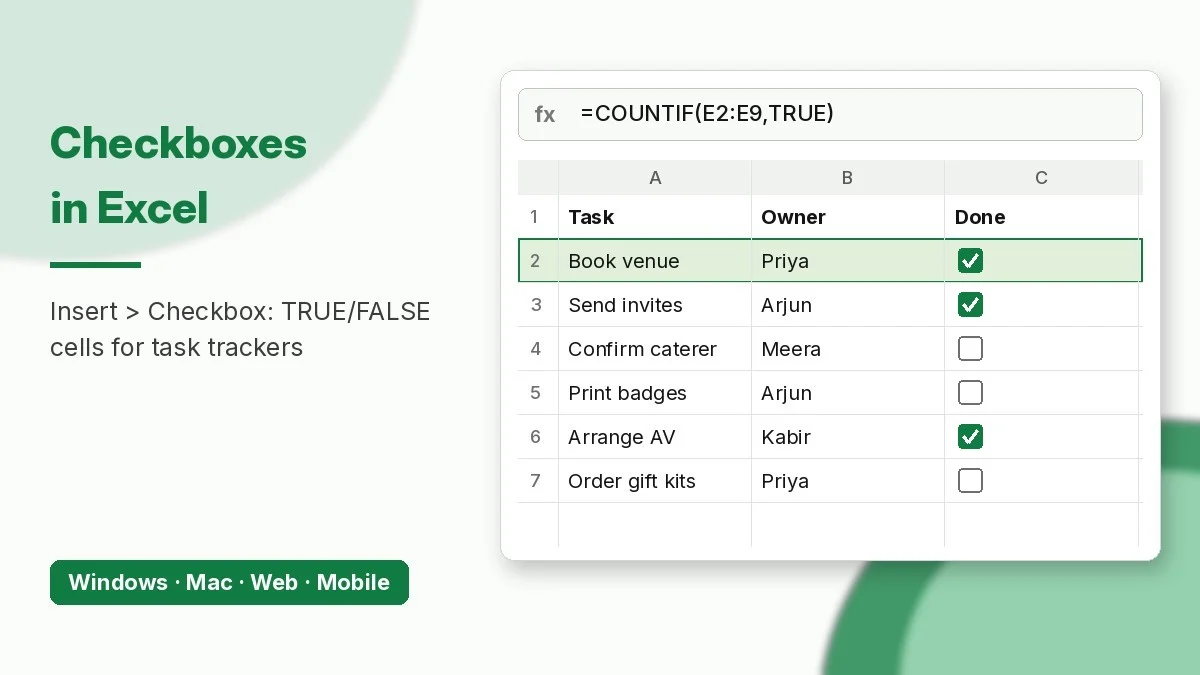
Checkboxes in Excel are now a built-in cell feature, not a fiddly form control. Select a range, choose Insert > Checkbox, and every cell gets a clickable box that stores TRUE when ticked and FALSE when cleared, ready to use in formulas, conditional formatting, and dashboards.
This guide covers where the feature is available, how to insert, toggle, and remove checkboxes, and six formulas that turn a simple list into a working task tracker. A free practice workbook with the same data is linked at the end.
Where Can You Use Checkboxes in Excel?
Microsoft released in-cell checkboxes in mid-2024. According to the Microsoft Excel blog announcement (updated January 2026), they are fully rolled out on these platforms:
| Platform | Available? | Notes |
|---|---|---|
| Excel for Microsoft 365 (Windows) | Yes | Current, Monthly Enterprise, and Semi-Annual channels |
| Excel for Microsoft 365 (Mac) | Yes | Insert tab |
| Excel for the web | Yes | Works in the browser |
| Excel for iPad, iPhone, and Android | Yes | Tap a box to toggle it |
| Excel 2024, 2021, 2019 (one-time purchase) | No | Use the Developer tab check box form control instead |
How to Insert Checkboxes in Excel
- Select the cells where you want checkboxes, for example E2:E9.
- Go to Insert > Checkbox (in the Cell Controls group).
- Every selected cell now shows an unchecked box with the value
FALSE.
If the cells already contain typed TRUE or FALSE values, they appear as checked or unchecked boxes right away. Checkbox formatting only applies to these logical values and blank cells; text and numbers are left as they are.
Toggle, Remove, and Keep the Values
- Toggle: click a box, or select several and press Spacebar.
- Remove: press Delete. If any boxes were ticked, the first Delete unticks them and the second removes them.
- Remove boxes but keep TRUE/FALSE: use Home > Clear > Clear Formats.
- Copy: checkboxes copy, paste, and fill down like any other cell value.
These steps match the official Microsoft guide to using check boxes in Excel.
Sample Task Tracker Data
The formulas below use this event-planning tracker in A1:E9. Column E holds the checkboxes.
| Task | Owner | Due | Cost | Done |
|---|---|---|---|---|
| Book venue | Priya | 18-Nov-2026 | 45,000 | TRUE |
| Send invites | Arjun | 19-Nov-2026 | 2,500 | TRUE |
| Confirm caterer | Meera | 21-Nov-2026 | 60,000 | FALSE |
| Print badges | Arjun | 23-Nov-2026 | 4,800 | FALSE |
| Arrange AV setup | Kabir | 24-Nov-2026 | 18,000 | TRUE |
| Order gift kits | Priya | 25-Nov-2026 | 22,000 | FALSE |
| Test live stream | Kabir | 26-Nov-2026 | 3,500 | FALSE |
| Share agenda | Meera | 27-Nov-2026 | 1,200 | TRUE |
6 Formulas That Use Checkboxes in Excel
1. Count completed tasks
=COUNTIF(E2:E9, TRUE)Returns 4. Change TRUE to FALSE to count open tasks.
2. Show percent complete
=COUNTIF(E2:E9, TRUE)/COUNTA(A2:A9)Returns 50% when formatted as a percentage. Tick another box and it jumps to 62.5% instantly.
3. Sum the cost of finished tasks
=SUMIFS(D2:D9, E2:E9, TRUE)Returns 66,700 (45,000 + 2,500 + 18,000 + 1,200). Use FALSE to get the remaining spend of 90,300.
4. List pending tasks with FILTER
=FILTER(A2:A9, NOT(E2:E9), "All done")Spills Confirm caterer, Print badges, Order gift kits, and Test live stream. As you tick boxes the list shrinks. If the result is blocked, see how to fix the #SPILL! error in Excel.
5. Count done tasks per owner
=COUNTIFS(B2:B9, "Priya", E2:E9, TRUE)Returns 1: Priya has finished Book venue but not Order gift kits.
6. Check that every box in a row is ticked
For an onboarding checklist with Laptop, Email, and Training checkboxes in B2:D2, this returns TRUE only when all three are ticked:
=AND(B2:D2)You can even insert a checkbox over this formula cell. Because the value comes from a formula, the box is read-only and ticks itself when the row is complete.
Strike Through Completed Tasks
Select A2:E9, open Home > Conditional Formatting > New Rule, choose Use a formula to determine which cells to format, enter =$E2=TRUE, and set a strikethrough font with grey colour. Our tutorial on conditional formatting in Excel explains the rule dialog in detail.
In-Cell Checkboxes vs Form Controls vs Google Sheets
| Feature | Excel in-cell checkbox | Developer tab check box | Google Sheets checkbox |
|---|---|---|---|
| Lives in the cell | Yes | No, floats on top | Yes |
| Value | TRUE / FALSE in the cell | Needs a linked cell | TRUE / FALSE or custom values |
| Insert many at once | Yes | No, one at a time | Yes |
| Sorts and filters with data | Yes | No | Yes |
| Menu | Insert > Checkbox | Developer > Insert | Insert > Checkbox |
Google Sheets also lets you set custom checked and unchecked values through data validation, as described on the Google Sheets checkbox help page. The formulas in this post work the same way in Sheets when you keep the default TRUE/FALSE values.
FAQ
Why is there no Checkbox button on my Insert tab?
You are probably on Excel 2021 or 2019, or a Microsoft 365 build that has not updated. Go to File > Account > Update Options > Update Now.
Can I count checkboxes with SUM?
Not directly, because SUM ignores logical values in ranges. Use COUNTIF(range, TRUE) or =SUM(--E2:E9).
What happens if someone opens the file in Excel 2019?
Older versions show the underlying TRUE and FALSE values instead of boxes, and formulas that reference them keep working.
Download the Practice Workbook
Use the companion workbook linked below to build this task tracker yourself. It has an Instructions sheet, a Practice sheet with the tracker and empty answer cells, and a Solutions sheet with working formulas.
Download the practice workbook
The same data as this tutorial, with empty answer cells and a Solutions sheet.
