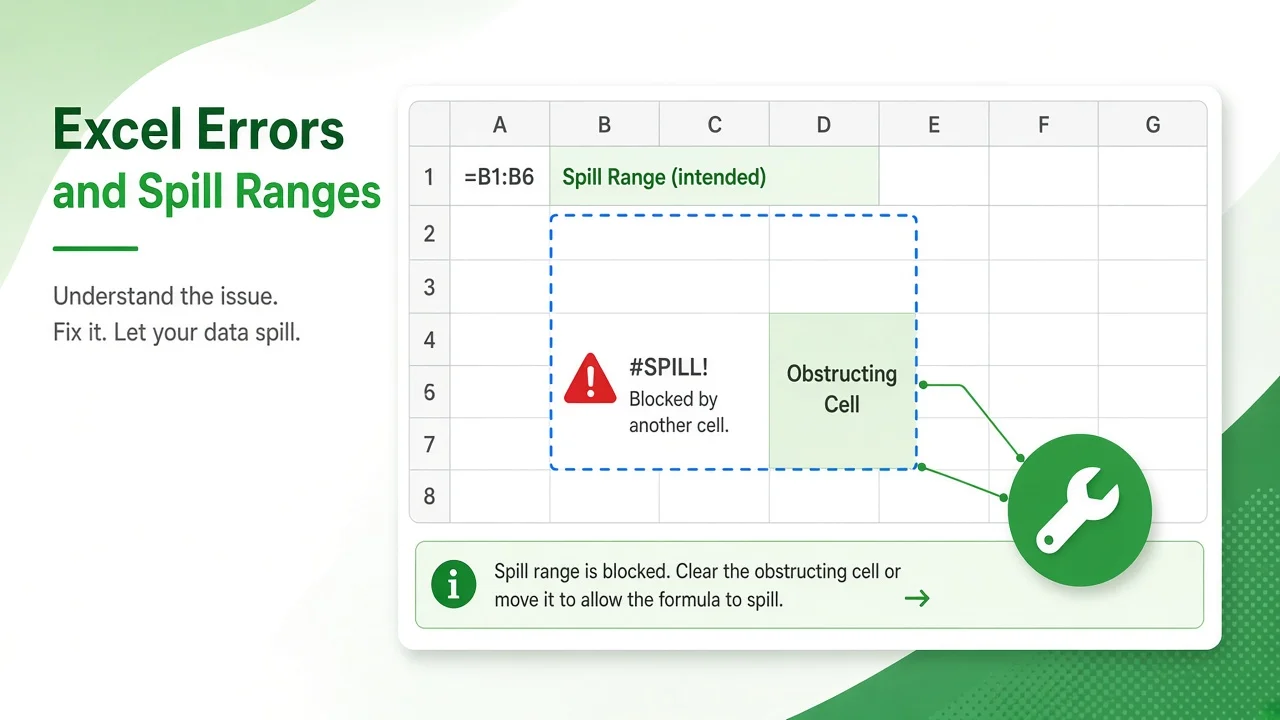
If a formula in Excel 365 suddenly shows #SPILL!, Excel is telling you it calculated a result but has nowhere to put it. This guide explains how to fix the #SPILL! error in Excel for every cause Microsoft documents—blocked cells, tables, merged cells, whole-column references, and volatile formulas—with formulas you can copy and a quick troubleshooting table.
The fixes apply to Excel for Microsoft 365 on Windows and Mac, Excel 2021 and 2024, Excel for the web, and the Excel mobile apps, because all of them support dynamic arrays.
What Does the #SPILL! Error Mean?
Dynamic array formulas such as FILTER, SORT, UNIQUE, SEQUENCE, and GROUPBY return many values from one cell. Those values “spill” into the neighboring cells, called the spill range. As Microsoft explains in its dynamic array and spilled array behavior guide, if Excel cannot write the whole result into that range, it shows #SPILL! in the formula cell instead.
Select the error cell and Excel draws a dashed border around the intended spill range. A small warning icon appears beside it; open it to see the exact reason, such as “Spill range isn’t blank.”
Quick Guide to Fix the #SPILL! Error in Excel
| Cause shown by Excel | Why it happens | Fix |
|---|---|---|
| Spill range isn’t blank | Data, a space, or a formula sits inside the spill range | Use Select Obstructing Cells, then clear or move that entry |
| Table formula | Spilled arrays are not supported inside Excel tables | Move the formula outside the table or convert the table to a range |
| Spill into merged cells | The spill range overlaps merged cells | Unmerge the cells or move the formula |
| Extends beyond the worksheet’s edge | The result is too large for the grid, often from whole-column references | Reference only the needed rows or use the @ operator |
| Indeterminate size | The array size keeps changing between calculation passes | Avoid sizing arrays with RAND, RANDARRAY, or RANDBETWEEN |
| Out of memory | The array is too large to calculate | Reference a smaller range |
| Unrecognized/Fallback | Excel can’t identify the cause | Check that the formula has all required arguments |
Fix 1: Clear an Obstructing Cell
This is the most common cause. Something—even an invisible space or an empty-string formula—is sitting in the spill range.
- Select the cell showing #SPILL!.
- Click the warning icon next to it and choose Select Obstructing Cells.
- Delete or move the content Excel highlights.
- The formula spills immediately once the range is clear.
Example: =UNIQUE(B2:B100) in D2 returns #SPILL! if D7 contains a note. Delete the note, or move the formula to an empty column.
Fix 2: Move the Formula Out of an Excel Table
Spilled array formulas are not supported inside Excel tables. You have two options:
- Place the formula in a cell outside the table—tables work perfectly as the source of a dynamic array, for example
=SORT(Sales[Region]). - Or convert the table: select any cell, then go to Table Design > Tools > Convert to Range.
Fix 3: Unmerge Cells in the Spill Range
Dynamic arrays cannot spill into merged cells. Select the merged area and choose Home > Merge & Center to unmerge it. For headings that span columns, use Center Across Selection (Format Cells > Alignment) instead of merging.
Fix 4: Whole-Column References That Extend Beyond the Sheet
Older formulas written for pre-dynamic-array Excel often break here. Microsoft’s official #SPILL! troubleshooting article uses this example placed in E2:
=VLOOKUP(A:A,A:C,2,FALSE)Because the lookup value is the entire column A, Excel tries to return 1,048,576 results and runs past the bottom of the grid. Microsoft lists three fixes:
| Approach | Formula | Returns dynamic array? | Works in tables? |
|---|---|---|---|
| Reference only the lookup values you need | =VLOOKUP(A2:A7,A:C,2,FALSE) | Yes | No |
| Reference the value on the same row, then copy down | =VLOOKUP(A2,A:C,2,FALSE) | No | Yes |
| Use the @ implicit intersection operator, then copy down | =VLOOKUP(@A:A,A:C,2,FALSE) | No | Yes |
The same pattern fixes SUMIF, INDEX/MATCH, and XLOOKUP formulas that accidentally use a whole column as the lookup value.
Fix 5: Indeterminate Size From Volatile Functions
If the size of the array depends on a value that changes every time Excel recalculates, Excel cannot settle on a spill range. Microsoft gives this example:
=SEQUENCE(RANDBETWEEN(1,1000))Fix it by generating the random number in a separate cell and copying it as a value, or by using a fixed size. According to Microsoft, this error is mostly associated with RAND, RANDARRAY, and RANDBETWEEN; other volatile functions such as OFFSET, INDIRECT, and TODAY do not return different values on every calculation pass.
Fix 6: Out of Memory or Unrecognized Errors
- Out of memory: narrow the source, for example
A2:A50000instead ofA:A, or useTRIMRANGEor the trim-ref operator (A:.A) where your Microsoft 365 build supports it. - Unrecognized/Fallback: review the formula arguments, then re-enter it. Splitting a complex nested formula into steps with LET often reveals the problem.
Practical Example: Build a Spill-Safe Report
Suppose orders live in a table named Orders. Place this formula in an empty area to the right of the table, with free space below and beside it:
=SORT(FILTER(Orders[[Customer]:[Amount]], Orders[Amount]>1000), 2, -1)Because the formula sits outside the table, references a structured range rather than whole columns, and has a clear spill area, it will not return #SPILL!. To refer to the entire result elsewhere, use the spill range operator, for example =SUM(H2#).
How Other Spreadsheet Apps Handle Spills
| App | Behavior when output is blocked |
|---|---|
| Excel 365 / 2021 / 2024 | Shows #SPILL! and a dashed border around the intended range |
| Google Sheets | Shows #REF! with the message “Array result was not expanded because it would overwrite data” |
| LibreOffice Calc | Has no #SPILL! error; array results, including FILTER and SORT in version 24.8 and later, are entered as array formulas over a defined range |
If you share workbooks between Excel and Google Sheets, the same cleanup—clear blocked cells and avoid merged areas—fixes both #SPILL! and #REF! expansion errors.
FAQ: Fixing #SPILL! Errors in Excel
Why did an old formula start showing #SPILL!?
Formulas that pass a range where Excel expects a single value now return arrays. Use a single-cell reference or the @ operator to restore the old behavior.
Can I turn off spilling in Excel?
There is no global setting. Prefix the reference or formula with @ to force a single result, or restructure the formula so it returns one value.
Does #SPILL! happen in Excel 2019 or earlier?
No. Excel 2019 and earlier do not support dynamic arrays, so they never show #SPILL!; they rely on legacy Ctrl+Shift+Enter array formulas instead.
How do I find what is blocking the spill range?
Select the error cell, open the warning icon, and choose Select Obstructing Cells. Excel jumps straight to the blocking cell.
With these six fixes, you can resolve almost every #SPILL! error in seconds and take full advantage of dynamic array formulas in Excel.
📊 Download Companion Practice Sheet (.xlsx)
Follow along with the exact tutorial dataset, raw test values, and verified formulas.

Team Xl in Excel
Spreadsheet Architect & Educator at Xl in Excel. Sharing advanced formulas, dynamic arrays, and clean data modeling techniques.
View All Tutorials by Team Xl in Excel →
Leave a Reply