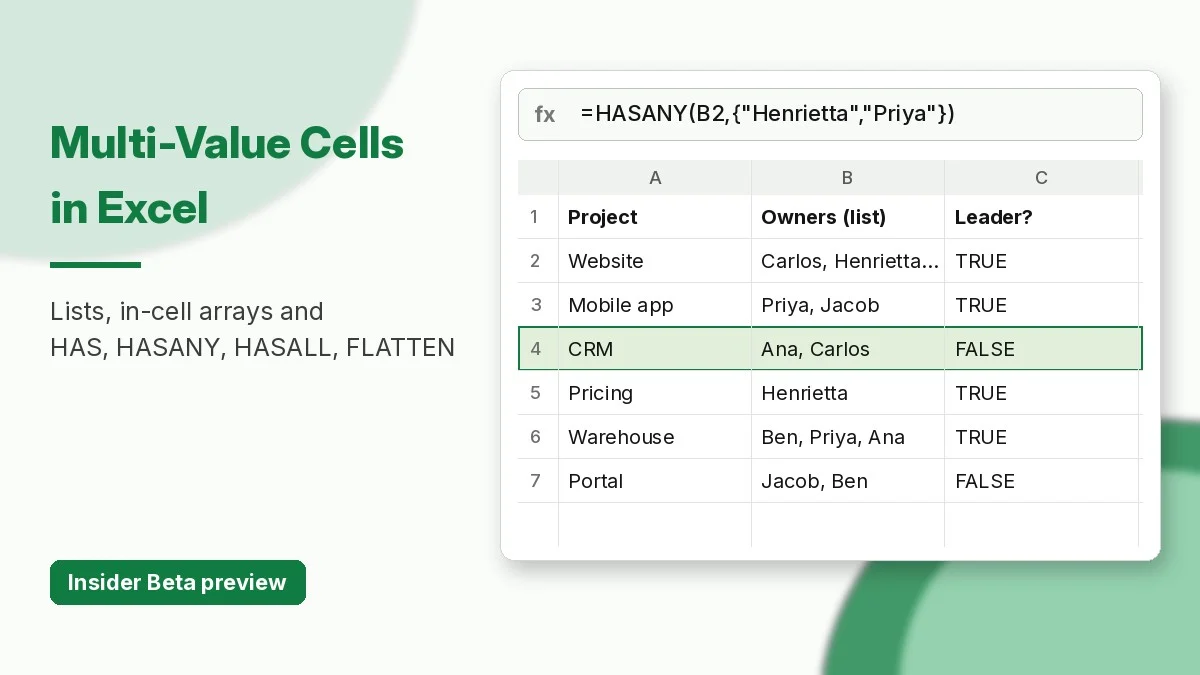
Excel multi-value cells are the biggest change to the grid in years. Until now a cell could hold only one value. Microsoft is now previewing lists, arrays in cells and nested arrays, plus four new functions: HAS, HASANY, HASALL and FLATTEN. Microsoft announced the preview on September 24, 2026.
This tutorial uses a small project tracker to show what each feature does, the formulas to try, and what still does not work. A free practice workbook at the end has the same data, plus fallback formulas that work in today’s Excel.
Availability: Insider Beta Only (For Now)
Read this first. As of November 20, 2026, these are preview features in the Microsoft 365 Insider Beta Channel for Excel on Windows (Version 2610, Build 20520.20000 or later) and Mac (Version 16.114, Build 26092111 or later). Microsoft rolls them out in stages, so a Beta build does not guarantee you have them yet. They are not in Excel for the web, Excel 2021 or Excel 2024, and LibreOffice Calc and Google Sheets do not support this exact single-cell nested array model. Microsoft says behaviour may change before general release and does not recommend them for important workbooks yet.
What Are Excel Multi-Value Cells?
There are three new kinds of value a cell can hold:
| Feature | What it holds | How you create it |
|---|---|---|
| List | Several separate items (text, numbers, dates or TRUE/FALSE) in one cell | Insert > List or Ctrl+J, then type or paste items separated by commas (or semicolons, depending on region) |
| Array in a cell | The whole result of a formula that would normally spill | Wrap the formula body in extra braces, e.g. ={TEXTSPLIT(B2,", ")} |
| Nested array | Arrays inside arrays | e.g. ={{1,2,3};{4,5,6}}, or formulas that return one array per row |
Excel shows a small icon in the cell. Select it to see the individual values. Double-click or press F2 to edit list items like any other value.
Sample Data: A Project Tracker
Here is the example used throughout. In a normal workbook the Owners and Sign-offs columns are comma-separated text. In Beta you can turn each one into a list.
| Row | Project (A) | Owners (B) | Sign-offs (C) |
|---|---|---|---|
| 2 | Website relaunch | Carlos, Henrietta, Jacob | Legal, Security, Finance |
| 3 | Mobile app v2 | Priya, Jacob | Security |
| 4 | CRM migration | Ana, Carlos | Legal, Finance |
| 5 | Pricing update | Henrietta | Finance |
| 6 | Data warehouse | Ben, Priya, Ana | Legal, Security |
| 7 | Partner portal | Jacob, Ben | Legal |
Step 1: Turn Comma Text Into a List
- Select B2 and press Ctrl+J (or choose Insert > List).
- Type or paste the owners separated by commas, then press Enter.
- Repeat for the other cells in Owners and Sign-offs.
The payoff shows up in filters. With plain text, the filter only offers whole entries such as “Carlos, Henrietta, Jacob”. With lists, you can filter by one owner, for example every project that includes Jacob.
Referencing a list returns all of its items. Typing =B2 in an empty cell spills Carlos, Henrietta and Jacob into separate cells.
Step 2: Keep a Spill Inside One Cell
Normally =TEXTSPLIT(B2,", ") spills across three cells. If something blocks them, you get a #SPILL! error (see our #SPILL! error guide). Add a second pair of braces and the whole result stays in one cell:
={TEXTSPLIT(B2,", ")}You can fill that down a column without any spill collisions. Each cell holds its own array.
Step 3: Nested Arrays From One Formula
Without nested arrays, =TEXTSPLIT(B2:B7,", ") returns only the first owner for each row. That is why our TEXTSPLIT tutorial used workarounds for multi-row splits. Microsoft says that with nested arrays the same formula spills one array per row, with every owner kept.
Most nested-array calculations need Compatibility Version 3. Set it per workbook in Formulas > Calculation Options. Some older formulas give different results under version 3, so you can stay on version 1 or 2 if a workbook breaks.
HAS, HASANY and HASALL in Excel
These three functions check whether values exist anywhere in an array, a range or a list cell. They search every level of a nested array.
With Owners and Sign-offs stored as lists, enter these in row 2 and fill down:
=HAS(B2,"Jacob")                        Is Jacob an owner?
=HASANY(B2,{"Henrietta","Priya"})       Is any leadership member involved?
=HASALL(C2,{"Legal","Security"})        Are both launch sign-offs done?
Expected results for rows 2 to 7:
| Project | HAS Jacob | HASANY leadership | HASALL Legal + Security |
|---|---|---|---|
| Website relaunch | TRUE | TRUE | TRUE |
| Mobile app v2 | TRUE | TRUE | FALSE |
| CRM migration | FALSE | FALSE | FALSE |
| Pricing update | FALSE | TRUE | FALSE |
| Data warehouse | FALSE | TRUE | TRUE |
| Partner portal | TRUE | FALSE | FALSE |
Three rules from the Microsoft HAS documentation are worth remembering:
- Type is strict. The number 1 does not match the text “1” or TRUE. If you need to compare a number with numeric text, convert first with
VALUE. - Text is not case-sensitive. “jacob” matches “Jacob”.
- One answer per call. If you point HASANY at a whole range like B2:B7, you get one TRUE or FALSE for the whole range. Fill the formula down to get one answer per row.
If you pass an array of values to HAS, it returns one TRUE/FALSE for each value, in the same shape. HASANY and HASALL always return a single result. If the array is empty, all three return #CALC!.
FLATTEN: Turn Nested Arrays Back Into a Grid
FLATTEN removes layers of nesting so the values spill into normal cells:
FLATTEN(array, [pad_value], [levels])- pad_value fills gaps when rows have different lengths. The default is #N/A.
- levels is how many layers to remove. The default is 1, and 0 removes every layer.
If D2:D7 holds ={TEXTSPLIT(B2,", ")} filled down, this spills a 6 × 3 grid with blanks where a project has fewer than three owners:
=FLATTEN(D2:D7,"")To get a single unique list of every owner, flatten with the default #N/A padding, then drop the errors:
=UNIQUE(TOCOL(FLATTEN(D2:D7),2))That returns Carlos, Henrietta, Jacob, Priya, Ana and Ben.
Common Pitfalls to Avoid
- Forgetting Ctrl+J on pasted text. If you paste
Carlos, Henrietta, Jacobinto a cell without converting it to a list, HAS, HASANY and HASALL treat it as one string and return FALSE. - Type mismatches. Checking for the number 1 against the text “1” returns FALSE. Convert types with
VALUEfirst if needed.
Known Limitations in the Preview
- Conditional formatting does not look inside arrays unless you use a formula rule.
- Data validation cannot use a list or array as dropdown items.
- Charts do not expand an array into data points.
- PivotTables and Power Query do not read array-valued columns.
- Find & Replace cannot replace list items.
- Older SUMIF, COUNTIF and VLOOKUP formulas may not see values inside multi-value cells.
- A workbook set to Compatibility Version 3 shows errors in versions of Excel that do not support it.
Our advice: try these features in a copy of a workbook. Keep shared files on comma text plus classic formulas until Microsoft makes the features generally available.
Fallback Formulas for Current Excel
No Beta build? You can get the same answers from comma-separated text. These work in Excel 2010 and later and in Google Sheets:
=ISNUMBER(SEARCH(", Jacob,", ", "&B2&","))                                   HAS
=SUMPRODUCT(--ISNUMBER(SEARCH(", "&{"Henrietta","Priya"}&",", ", "&B2&",")))>0   HASANY
=SUMPRODUCT(--ISNUMBER(SEARCH(", "&{"Legal","Security"}&",", ", "&C2&",")))=2   HASALL
The extra commas around the name stop “Ben” from matching “Benjamin”. The practice workbook uses these formulas in its Solutions sheet, so it calculates in any version.
Download the Practice Workbook
Use the download button on this page to get the free workbook. It has an Instructions sheet, the project tracker with empty answer cells, and a Solutions sheet. The Solutions sheet has working fallback formulas, the Beta formulas to try, and expected results.
FAQ
Can I use multi-value cells in Excel for the web?
Not yet. The preview is limited to Excel for Windows and Mac on the Microsoft 365 Insider Beta Channel.
What happens if I open the file in an older Excel?
Formulas that depend on these features show errors. A Compatibility Version 3 workbook may ask to be downgraded, and that breaks those formulas.
What is the difference between HAS and HASANY?
HAS checks one value, or returns one result per value if you pass an array. HASANY checks a set of values and returns a single TRUE if any of them is found.
Will Microsoft change these features?
Possibly. Microsoft says preview features can be adjusted, paused or removed before general release. At least one preview-channel user has reported the functions disappearing after an update. Check the Excel blog for availability news.
Download the practice workbook
The same data as this tutorial, with empty answer cells and a Solutions sheet.
