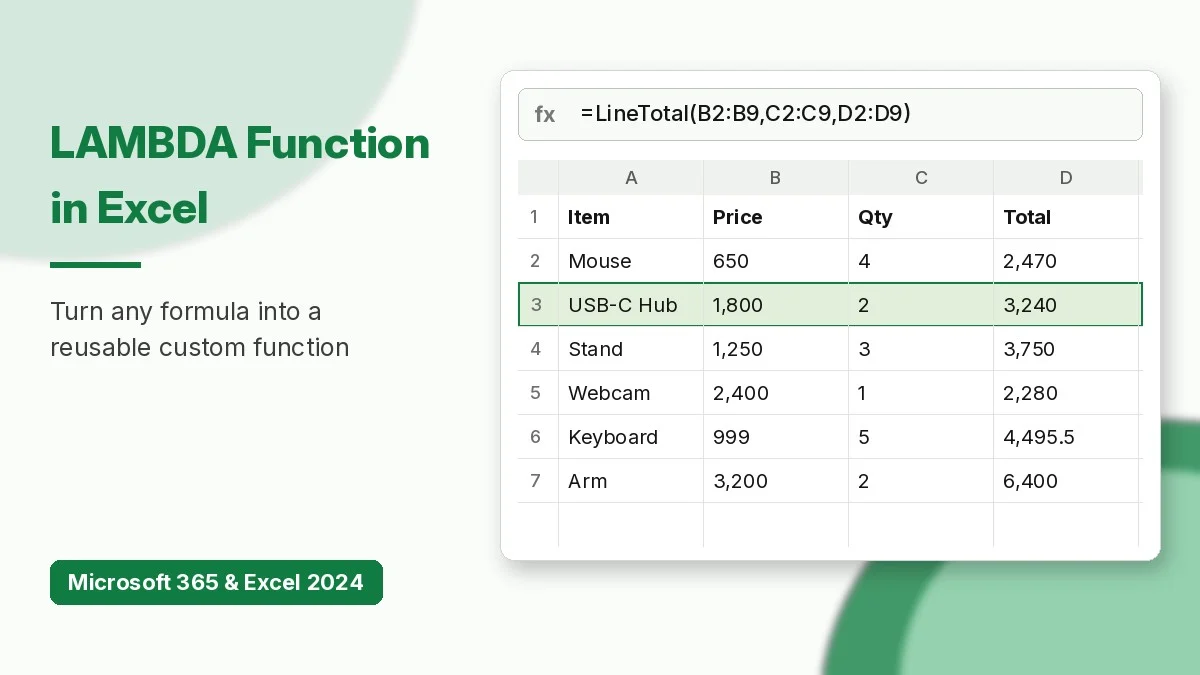
The LAMBDA function in Excel lets you turn any formula into your own reusable custom function, with a friendly name, its own arguments, and no VBA or macros. Write the logic once, save it in the Name Manager, and call it like a built-in function such as =AddGST(B2, 18%).
This guide walks through the syntax, how to test a LAMBDA in a cell, how to name it, optional arguments, and seven practical examples using one small order list. A free practice workbook with the same data is linked at the end.
What Is the LAMBDA Function in Excel?
LAMBDA takes a list of parameter names followed by a calculation that uses those names. On its own, a LAMBDA is just a definition. It returns a result only when you pass values to it, either directly in the cell or through a name you create.
It works in Excel for Microsoft 365 (Windows, Mac, web, and mobile) and in Excel 2024 for Windows and Mac. Older perpetual versions such as Excel 2021 and 2019 show #NAME?. Google Sheets has its own LAMBDA plus a Named functions feature, covered later in this post.
LAMBDA Syntax and Arguments
=LAMBDA([parameter1, parameter2, ...,] calculation)| Argument | Required? | What it does |
|---|---|---|
| parameter | No | A name for a value you pass in, such as price or qty. Up to 253 parameters. Do not use a period, and avoid names that look like cell references (such as x1, r, or c). |
| calculation | Yes | The formula to run. It must be the last argument and must return a result. |
These rules come from the official Microsoft LAMBDA function documentation, which also lists the error values covered below.
How to Create a Custom Function With LAMBDA
- Test the formula. Get the normal formula working first, for example
=B2*C2*(1-D2). - Test the LAMBDA in a cell. Add a call in brackets right after it:
=LAMBDA(x, x*1.18)(100)returns 118. Without the call you get#CALC!. - Name it. On Windows go to Formulas > Name Manager > New; on Mac use Formulas > Define Name. Enter a name, an optional comment (shown as a tooltip), and paste the LAMBDA into Refers to.
- Use it. Type
=and the name in any cell of the workbook. Excel shows it in Formula AutoComplete like a native function.
Sample Data Used in the Examples
All examples use this order list in A1:D9: item name, unit price, quantity, and discount rate.
| Item | Unit Price | Qty | Discount |
|---|---|---|---|
| Wireless Mouse | 650 | 4 | 5% |
| USB-C Hub | 1,800 | 2 | 10% |
| Laptop Stand | 1,250 | 3 | 0% |
| Webcam | 2,400 | 1 | 5% |
| Keyboard | 999 | 5 | 10% |
| Monitor Arm | 3,200 | 2 | 0% |
| HDMI Cable | 350 | 10 | 15% |
| Desk Lamp | 1,100 | 3 | 5% |
7 Practical LAMBDA Examples
1. Add 18% GST to a price
Create a name AddGST that refers to:
=LAMBDA(amount, rate, amount*(1+rate))Then =AddGST(B2, 18%) returns 767 for the Wireless Mouse. To test it before naming, use =LAMBDA(amount, rate, amount*(1+rate))(B2, 18%).
2. Calculate a discounted line total
LineTotal =LAMBDA(price, qty, disc, price*qty*(1-disc))=LineTotal(B2, C2, D2) returns 2,470. Copy it down, and if the discount rule ever changes you edit one definition in the Name Manager instead of hundreds of cells.
3. Spill all line totals at once
=LineTotal(B2:B9, C2:C9, D2:D9)Because the calculation is plain arithmetic, passing whole ranges spills eight results: 2,470, 3,240, 3,750, 2,280, 4,495.5, 6,400, 2,975, and 3,135. Wrap it in SUM to get the order total of 28,745.5.
4. Make an argument optional with ISOMITTED
Wrap a parameter in square brackets to make it optional (optional parameters must come after required ones), and ISOMITTED checks whether it was supplied:
AddTax =LAMBDA(amount, [rate], amount*(1+IF(ISOMITTED(rate), 18%, rate)))=AddTax(B3) uses the 18% default and returns 2,124, while =AddTax(B3, 5%) returns 1,890.
5. Clean messy text
CleanName =LAMBDA(txt, PROPER(TRIM(txt)))=CleanName(" wireless MOUSE ") returns Wireless Mouse. For more text recipes, see our guide to Excel formulas for manipulating text data.
6. Use LAMBDA inside MAP
=MAP(B2:B9, C2:C9, LAMBDA(p, q, p*q))MAP sends each pair of values to an unnamed LAMBDA and spills the gross amounts: 2,600, 3,600, 3,750, 2,400, 4,995, 6,400, 3,500, and 3,300. MAP, BYROW, BYCOL, SCAN, REDUCE, and MAKEARRAY all take a LAMBDA as their last argument.
7. Process each row with BYROW
=BYROW(B2:C9, LAMBDA(line, PRODUCT(line)))BYROW passes each row of B2:C9 as line, so PRODUCT(line) returns the same gross amounts as example 6. It is handy when a row has many columns to combine. The same pattern powers the function arguments in GROUPBY in Excel.
LAMBDA vs LET vs VBA Functions
| Option | Reusable by name | Needs macros | Best for |
|---|---|---|---|
| LAMBDA | Yes, across the workbook | No | Custom functions you call many times |
| LET | No, one cell only | No | Naming steps inside a single long formula |
| VBA user-defined function | Yes | Yes (.xlsm file) | Logic that needs loops or file access |
LET and LAMBDA work well together: use LET inside the calculation to name intermediate results, then wrap it all in LAMBDA to reuse it.
LAMBDA in Google Sheets
Google Sheets supports the same LAMBDA syntax along with MAP, BYROW, and REDUCE. Instead of the Name Manager, you save custom functions through Data > Named functions, as explained in the Google Sheets named functions help page. Named functions can also be imported into other spreadsheets.
Common LAMBDA Errors and Fixes
- #CALC! – you entered a LAMBDA in a cell without calling it. Add the values in brackets, or move it to the Name Manager.
- #VALUE! – the wrong number of arguments was passed, or more than 253 parameters were defined.
- #NAME? – your Excel version does not support LAMBDA, or the custom name is misspelled.
- #NUM! – a recursive LAMBDA called itself too many times.
FAQ
Do LAMBDA functions work in other workbooks?
Not automatically, because names are stored per workbook. Copy a cell that uses the function into the other workbook and Excel brings the name along, or keep your LAMBDAs in a template.
Is LAMBDA available in Excel 2021?
No. You need Microsoft 365 or Excel 2024.
Can a LAMBDA return more than one value?
Yes. If the calculation returns an array, the result spills like any dynamic array formula.
Download the Practice Workbook
Use the companion workbook linked below to practise all seven examples on the same order list. It has an Instructions sheet, a Practice sheet with empty answer cells, and a Solutions sheet with working formulas.
Download the practice workbook
The same data as this tutorial, with empty answer cells and a Solutions sheet.
